Project Configurator: Unit-specific visibility of projects
Version 11.0.0.0
Access to a project can be restricted to a specific unit - in addition to the existing access restriction defined by a role. This is useful if users belong to several units, but a project should only be visible to a specific unit selected in the GENIUS TOOLS Starter App.
In the main menu item Organization, the new tab Access contains a permissions tree that defines project access. Roles that do not define a unit can be added to the permissions tree. These so-called "free roles" could previously be used, for example, to restrict access to a project to a group of key users without creating a unit for this group.
With the new option to restrict a project to a unit, free roles can now be used to restrict a project within a unit to a subset of the unit's members, e. g. a group within a unit can be given access to a test project.
Please note: Project access rights are always defined for members of a role. The role can be assigned to a unit or be used as a free role in the permissions tree. |
To restrict access to a project, use the Plus symbol to select a previously created project. Then drag and drop the project under the unit or the free role for whose members the project is to be restricted.
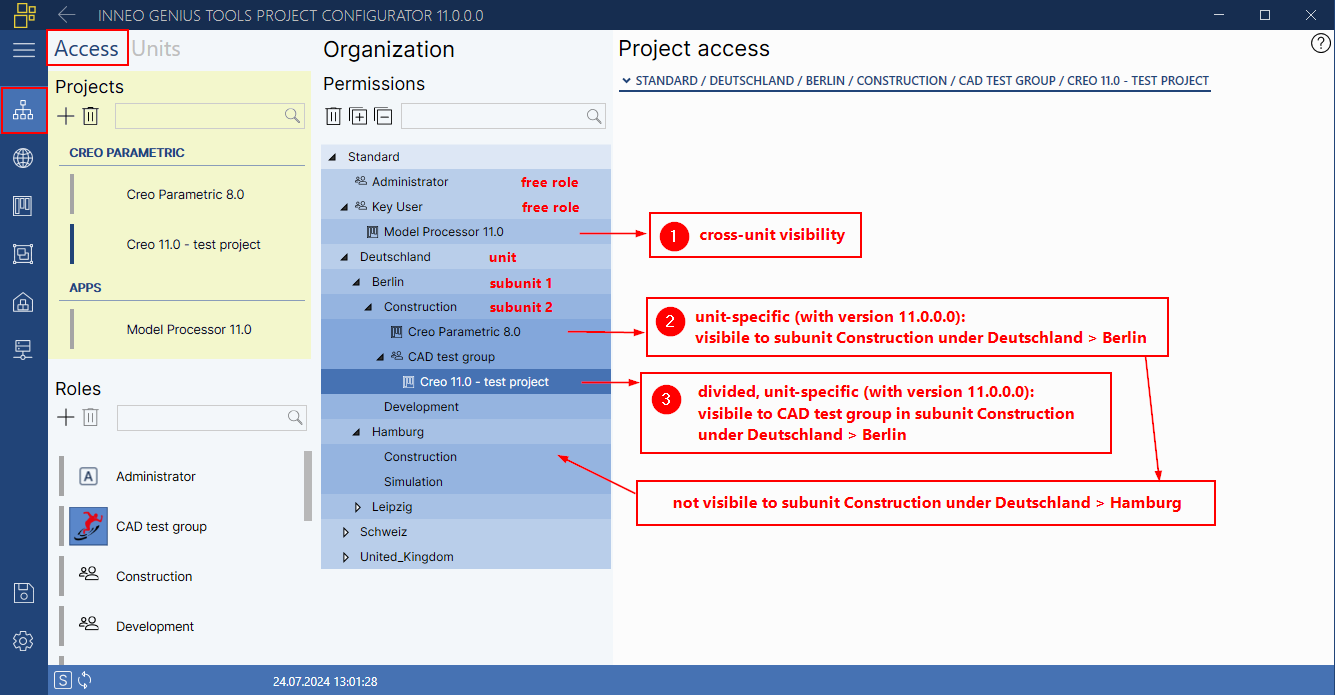
Methods to define project access in the permissions tree
Thus, there are the following options for restricting project access. The examples below are described in the GENIUS TOOLS Starter Manual in the chapter GENIUS TOOLS Project Configurator > Restricting project access with step-by-step instructions.
1. Cross-unit visibility (with free roles)
All members of this role see the projects in GENIUS TOOLS Starter App that are assigned to the role. If a user is assigned to more than one role, he will see the restricted projects in GENIUS TOOLS Starter App, regardless of which unit he selects.
Example: The company ABC would like to limit access to the data revision program GENIUS TOOLS Model Processor to a small group of designers who have been trained to use this software. There should not be an extra unit for this group of key users. The key users, who are members of several units, should be able to open the program out of all units.
2. New: Unit-specific visibility (with assigned roles)
If a user is assigned to several roles, the visibility of a project can be restricted to the selection of a specific unit.
Example: The company ABC wants Creo Parametric version 8.0 to be used only by designers in Berlin, as this version is needed for a specific customer project. Designers who are also members of other units / roles will only see the project when selecting the unit Berlin and subunit Construction in GENIUS TOOLS Starter App.
3. New: Divided unit-specific visibility (with free roles)
A project can be restricted to members of a free role within a unit.
Example: A test group is to be given access to a test project within the unit Construction.